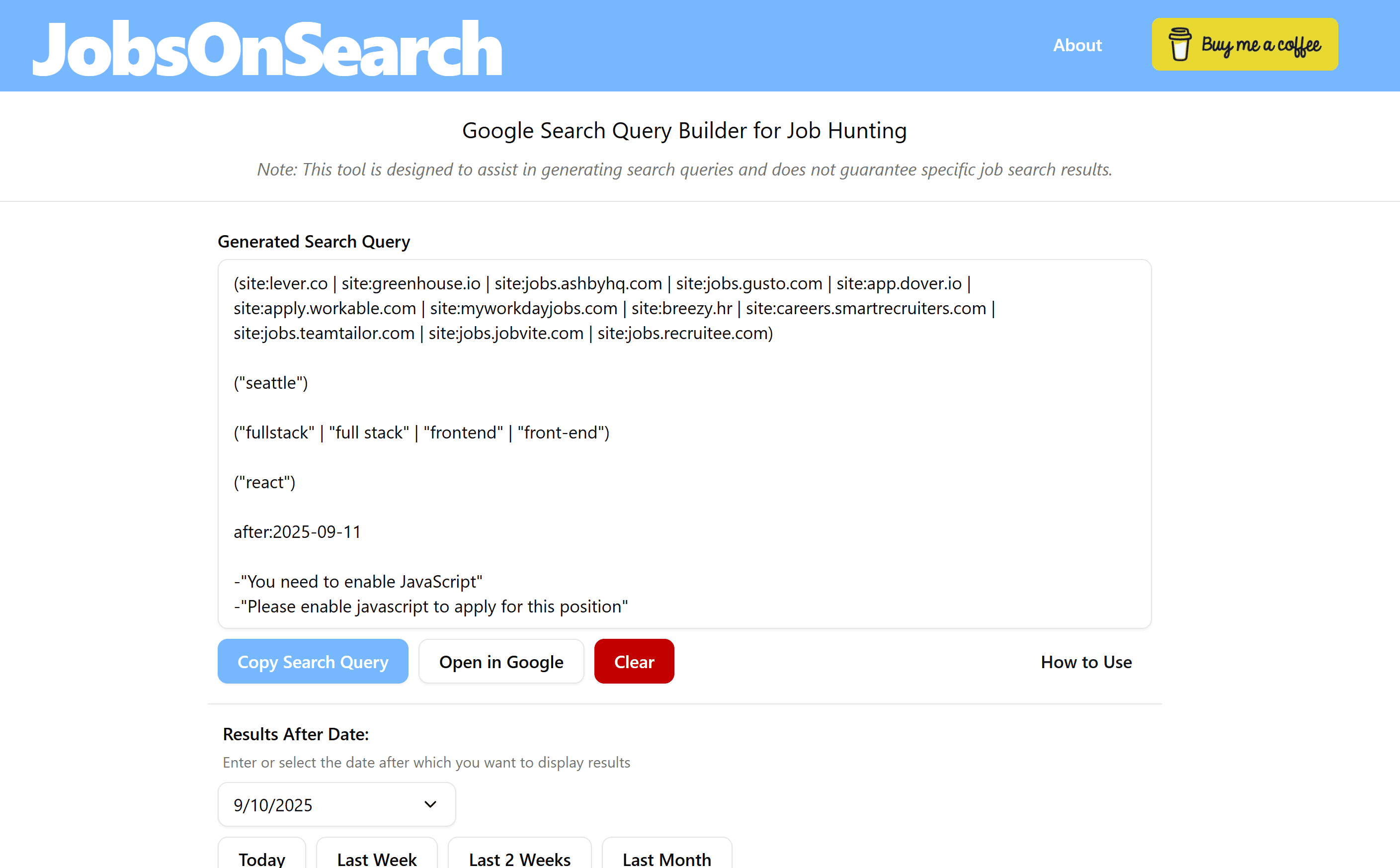
At the end of the day, using this tool comes down to trial and error. Some search queries might work perfectly for you, but not for someone else. Finding the right mix of keywords means experimenting with different combinations until you start seeing the results you need.
Getting started
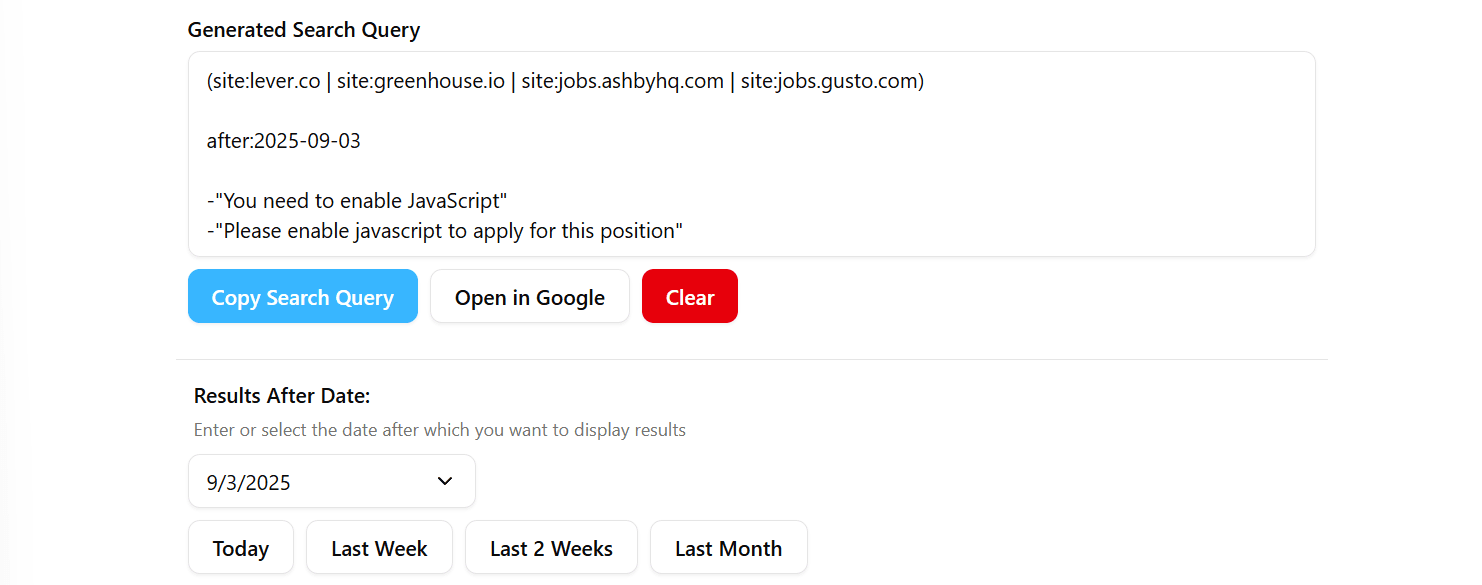
To make things easier, a few parts of the search query are already pre-filled:
- Date: By default, the date is set to one week prior. You can choose from "Today," "Last Week," "Last 2 Weeks," or "Last Month," or simply pick a custom date that fits your needs.
- Job Board Websites: This field starts with a few popular job boards already included. Over time, we’ll continue adding more sites to expand your options.
- Words or Phrases to Exclude: We’ve added a few default exclusions for keywords that often bring in irrelevant results.
Job Board Websites
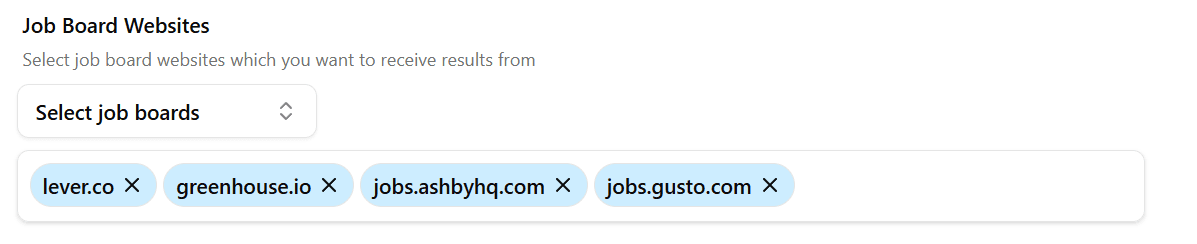
This tells Google to search only within the sites you specify. These job boards are the places where companies typically post their official job listings. Sites like Indeed or ZipRecruiter often just link to these same postings. With JobsOnSearch, you skip the middleman and go straight to the source..
Location
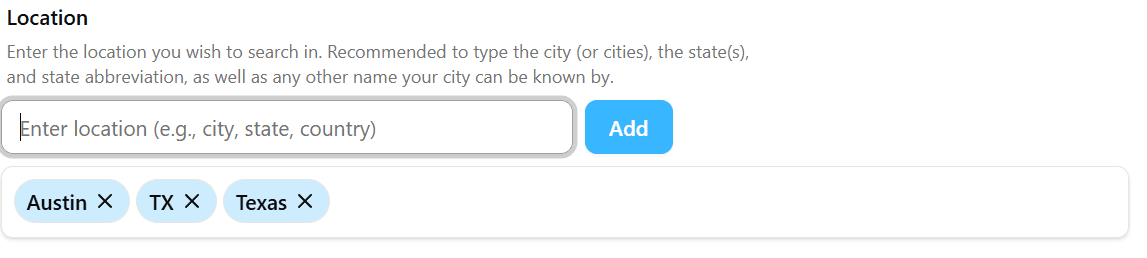
This is where you set the location for your job search. A few tips:
- Enter the city and state as separate entries (e.g., Austin + TX) instead of “Austin, TX.” Different companies format locations in different ways, so this gives you better coverage.
- Add both the state abbreviation and the full name (TX + Texas) to capture more results.
Job Titles
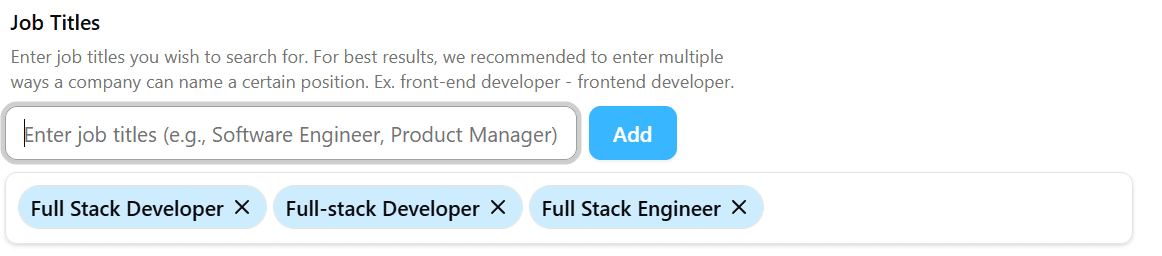
This section can be a little tricky and usually requires testing different variations. For example, in tech you might be looking for a Full Stack Engineer but companies may list the role in several ways:
Full-Stack EngineerFull-Stack Software EngineerFullstack EngineerFull Stack DeveloperFull-Stack Developer
…and so on.
It’s best to include a few variations, but don’t overload your query. The goal is to find the right balance between coverage and relevance. For example, you might write "frontend" + "front-end" to cover both common formats.
Tech / Skills
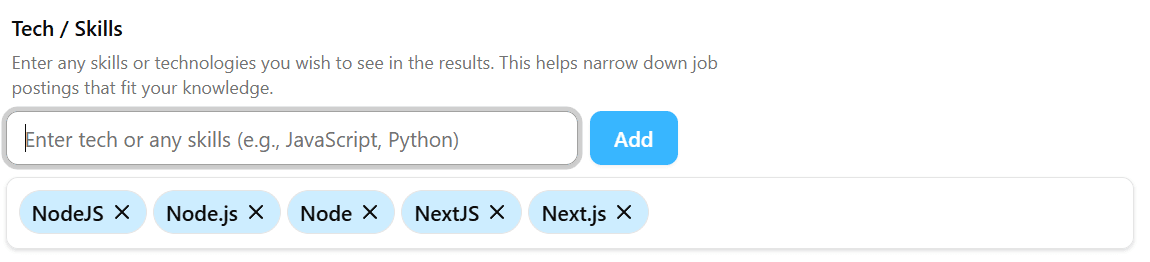
This works much like job titles. Companies often list the same skill in different ways. For example, NodeJS might also appear as Node or Node.js. Try a few variations to maximize your results.
Must Have Keywords
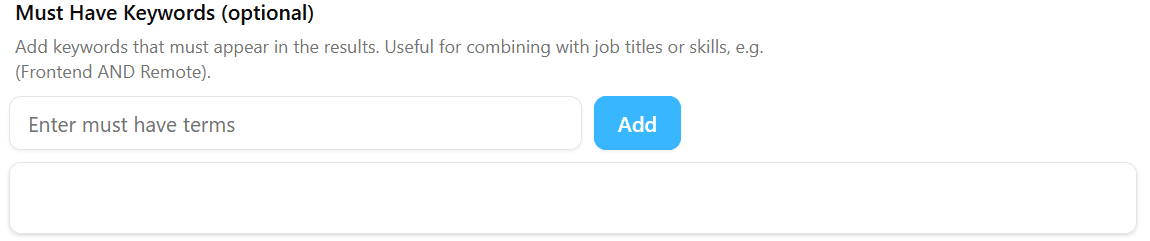
This field lets you force certain keywords to always appear in your results. It works together with job titles and skills. By default, job titles and skills are treated as OR (e.g., Frontend Developer OR Full Stack Engineer). Adding a must-have word changes the logic to something like:
(Frontend AND Remote) OR (Full Stack AND Remote)
Words or Phrases to Exclude
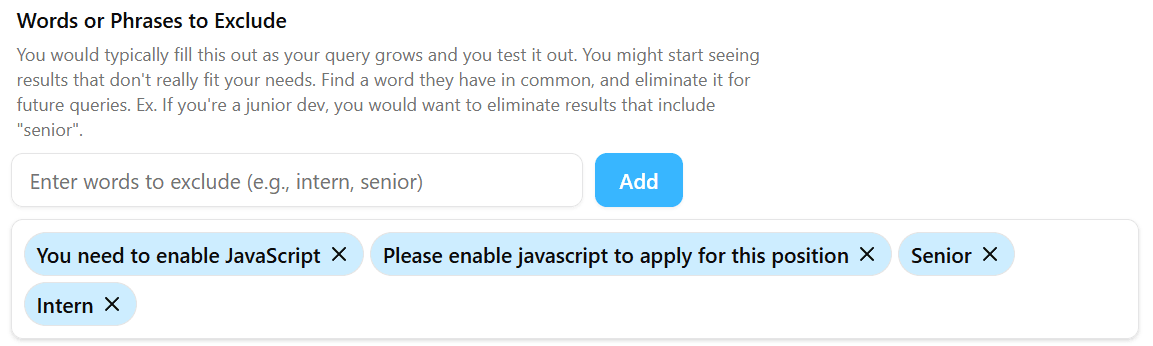
This is most commonly used to filter out roles you don’t want, such as Senior or Intern. This makes your search results more accurate.
It’s usually best to add exclusions once you start seeing patterns in the results. If you notice a lot of jobs you don’t want, look for a common word or phrase and exclude it in your next query. That’s exactly how we came up with the default exclusions included in the tool.
Example would be if you're looking for positions in Washington State but you notice that you're receiving results for Washington D.C. This is what would happen to me. In my case I would exclude DC and D.C. to make sure I only receive results for Washington state.
Additional Keywords
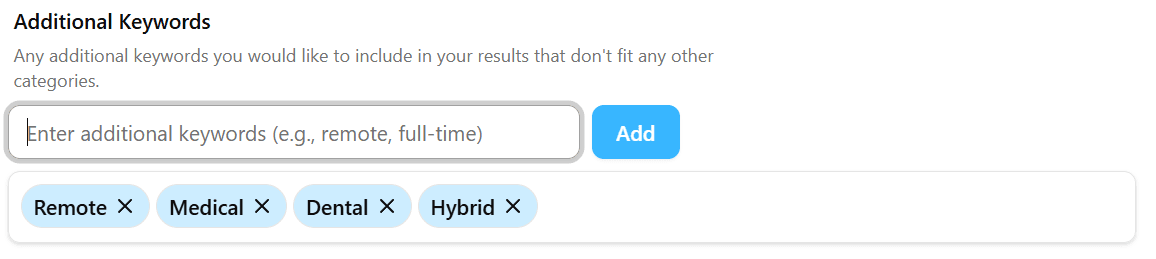
Here you can add anything extra you’d like to include in your query. For example, if you’re looking for roles that specifically mention benefits like PTO or dental, or if you have other requirements you want to see in job posts, this is where to add them.